Family Tree Templates for Word (Free, Editable)
Microsoft Word builds a perfectly decent family tree three ways: SmartArt's hierarchy diagrams (fastest), text boxes with connectors (most flexible), or a table grid (most printable). SmartArt gets a small tree on the page in five minutes; text boxes are what you want the moment anyone in the family has two marriages; and for anything past four generations, honestly, a purpose-built printable beats fighting Word's canvas — which is why the free CousinChart pack includes chart PDFs that skip the wrestling entirely.
This guide walks all three methods step by step, the page-setup settings that make trees fit, where the genuinely free Word templates live, and the point at which each approach taps out. Whichever method you pick, the boxes only hold names — for what the people in them actually are to each other, keep the free relationship calculator open in the next tab.
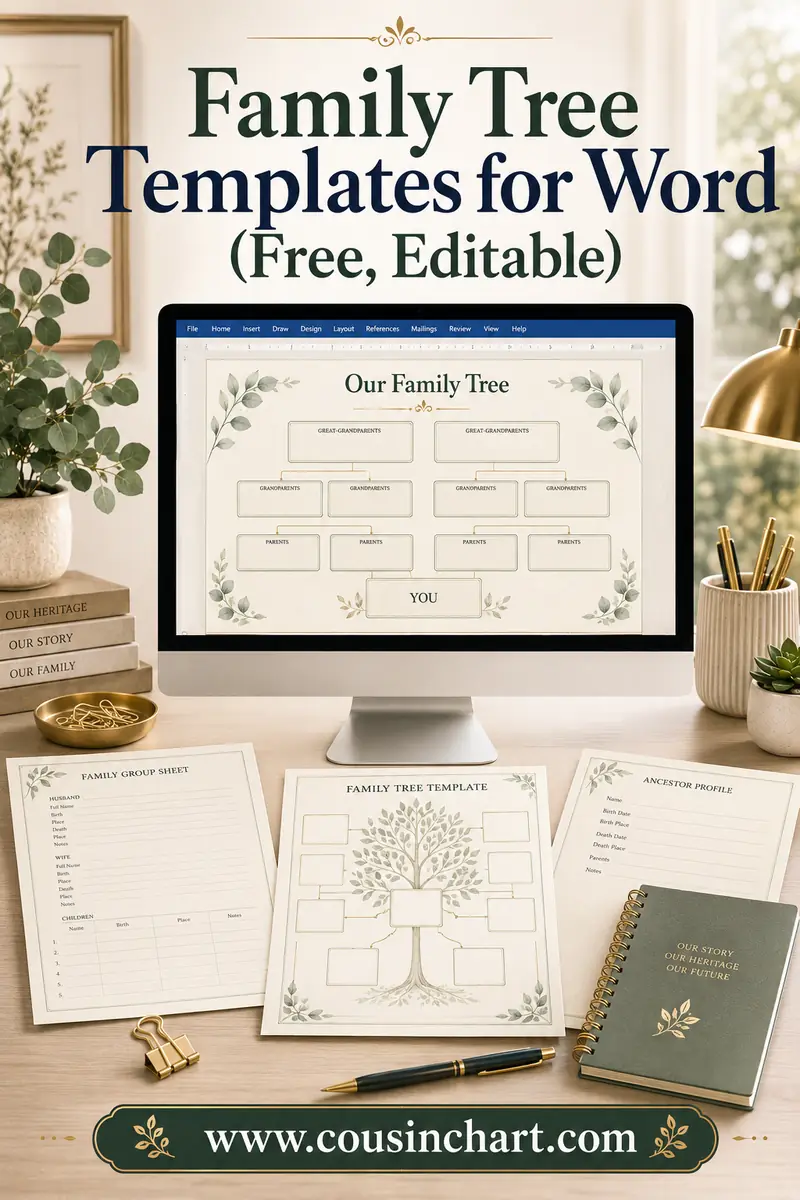
Free printables for this page
Download a blank PDF (US Letter or A4) — free, no sign-up — or customize it in the maker above before printing.
 3-Generation Family TreeYou, parents and grandparents. Portrait, big boxes, 10 minutes to fill.
 4-Generation Pedigree Chart
 5-Generation Pedigree Chart
 Blank Fan Chart (5 Generations)
Relationship quick-check: tap a phrase to see who they are — before you decide whose box connects where.
Tap a phrase above to see the answer.
Work out any family relationship →Before anything: page setup
Trees are wide; Word pages are tall. Fix that first, or every method below fights you:
- Layout → Orientation → Landscape.
- Layout → Margins → Narrow (0.5") — trees need every inch.
- Going big? Layout → Size → More Paper Sizes accepts custom dimensions up to 22×22 inches. Set 17×11 to design for tabloid printing, and Word becomes a poster tool — you just print the file at a copy shop instead of at home.
With the page set, pick your method — here's the honest comparison before the step-by-steps:
| Method | Effort | Best for | Where it taps out |
|---|---|---|---|
| SmartArt hierarchy | About 5 minutes | A quick three-generation descendant tree | Remarriages, step-links, showing both parents separately |
| Text boxes + connectors | An evening | Real families — couples, half-siblings, dashed step-lines | About 4 generations on Letter; 5–6 on a 17×11 page |
| Table grid (merged cells) | About 20 minutes | A clean pedigree that prints reliably on any computer | Ancestor charts only; plain looks |
Method 1: SmartArt (five minutes, small trees)
- Insert → SmartArt → Hierarchy, and pick a basic hierarchy layout — for family trees, the plain top-down "Organization Chart"-style box works best.
- Click a box, type a name. Use the Text Pane (the arrow tab on the diagram's left edge) to work fast: it's just an indented list, and each indent level is a generation.
- Add people with SmartArt Design → Add Shape: Add Shape Below for a child, Add Shape After for a sibling.
- Restyle in one click via SmartArt Design → Colors / Styles — this is why SmartArt demos look so good.
SmartArt's catch is structural: hierarchy diagrams assume each box has one parent box, because they were built for org charts, and families stubbornly insist on two. The standard workarounds: put the couple in one shared box ("Elena Cruz & Marco Reyes") and branch children from it — clean and reunion-ready — or run an ancestors-only chart where each person branches upward to a single joint "parents" box per couple. For a one-couple descendant tree three generations deep, SmartArt is genuinely the fastest tool in the house. For anything with remarriages, step-links, or both bloodlines shown separately, it collapses — move to method 2.
Method 2: text boxes and connectors (full control)
The manual method, and the one that handles real families:
- Insert → Shapes → Text Box. Draw one box, type a name, then set its style once (fill, border, font).
- Copy-paste that box for everyone. Uniformity by cloning beats formatting sixty boxes individually.
- Connect with elbow connectors: Insert → Shapes → Elbow Connector. Hover over a box and Word shows anchor dots; drag from dot to dot and the connector glues — move the box later and the line follows. This gluing is the entire reason to use connectors instead of plain lines.
- Layout rules that keep it legible: one horizontal band per generation; couples side by side with a short straight connector; children hanging from a drop line under the couple; dashed connectors (right-click the line → Format Shape → Dash type) for step and adoptive links.
- Align and space with the tools under Shape Format → Align — select a whole generation's boxes and hit Align Top, then Distribute Horizontally. This one habit is the difference between "made in Word" and "made carefully in Word."
- When it's done, select everything and Group (Ctrl+A over the shapes → right-click → Group) so a stray drag doesn't dismantle three evenings of work.
Capacity check: on landscape Letter, text boxes handle about four generations of a modest family before boxes shrink below readable. On a 17×11 custom page, five to six. Beyond that, Word isn't your bottleneck — the paper is, and it's poster time.
Method 3: the table grid (most printable, zero drawing)
No shapes at all: Insert → Table, one column per generation (ancestor-style) or one row per generation (descendant-style), then merge cells (select cells → right-click → Merge Cells) so each generation has the right number of slots — 1, 2, 4, 8 reading across. Type names in the merged cells, add borders only where you want box lines, and you've got a clean pedigree grid that prints exactly as it looks, never reflows, and edits like any Word table. It won't win design awards, but for a school project due tomorrow it's twenty minutes flat, and it's the most reliable of the three for printing on someone else's computer.
Free templates, and what "free" means
- Word's built-ins: File → New, search "family tree." Selection rotates and is thin but genuinely free.
- Microsoft's template gallery online carries a few more, also free with a Microsoft account.
- Third-party template sites are a mixed bag — many "free Word family tree templates" are watermarked bait or just images pasted into a .docx that fall apart when edited. If dragging one box breaks the layout, close it and build the table version; you'll finish faster.
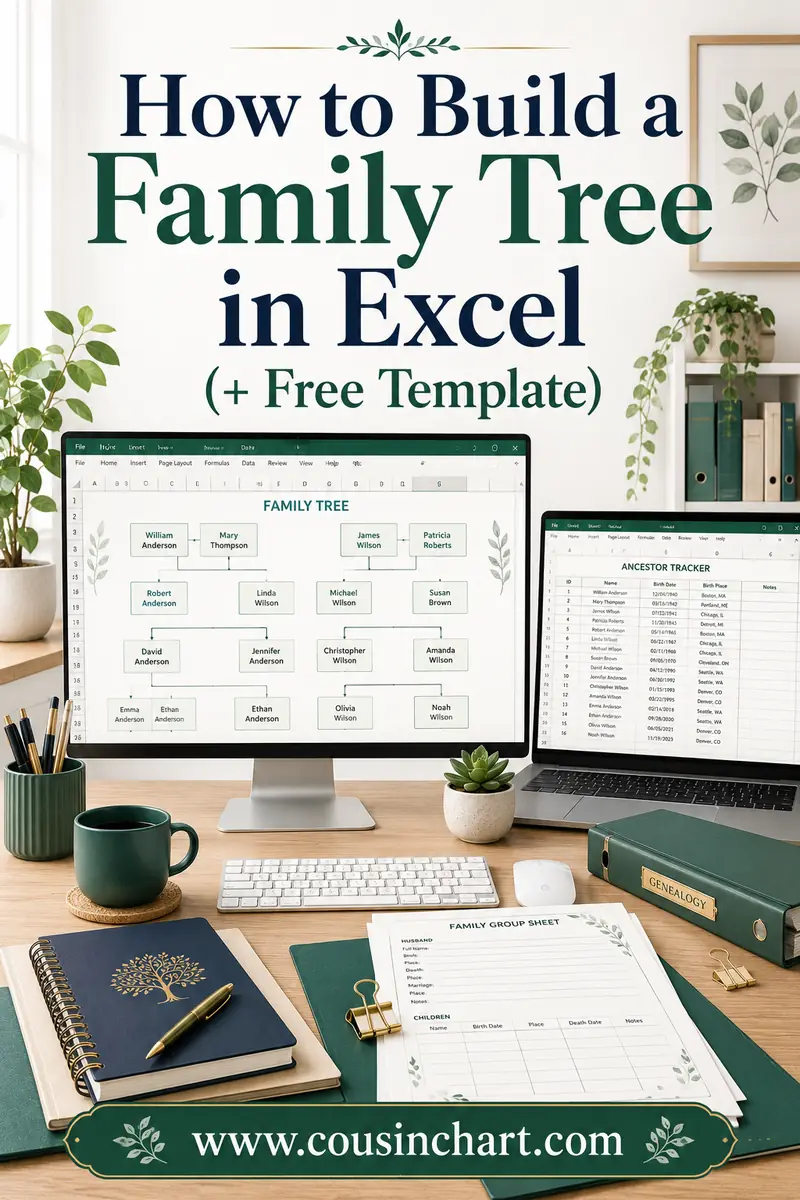
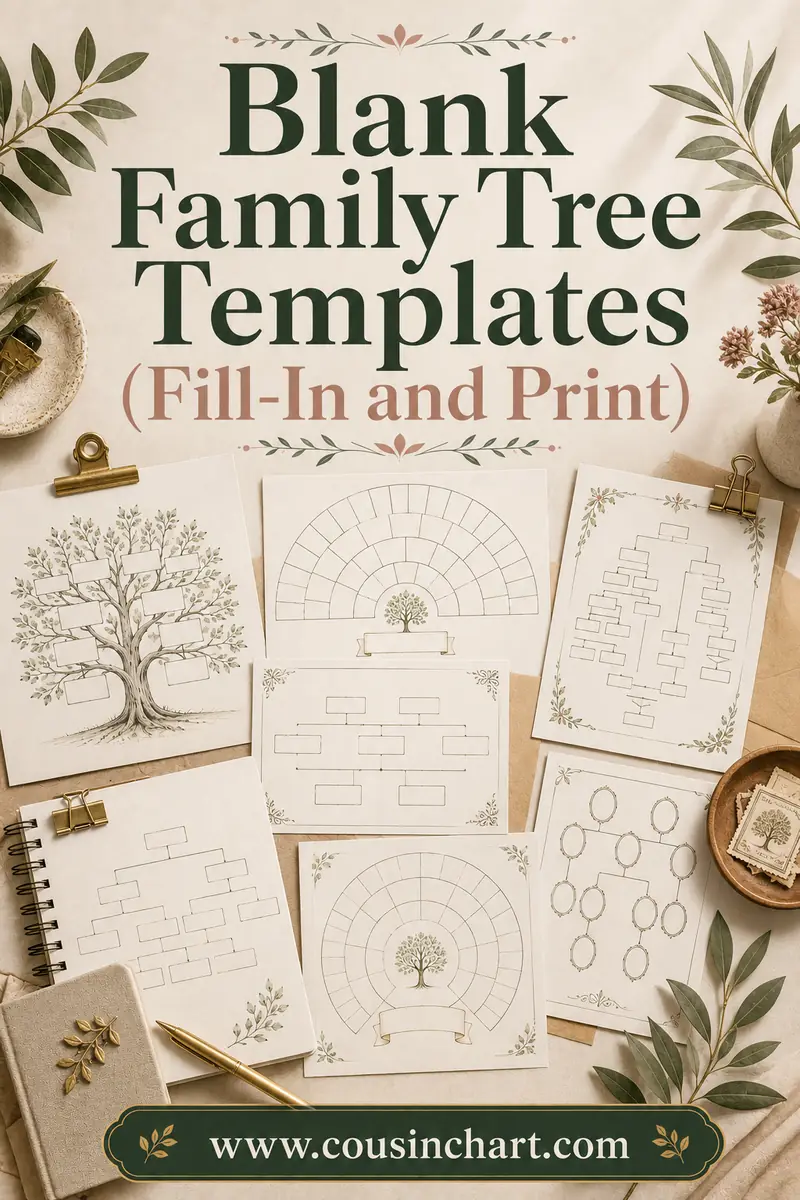
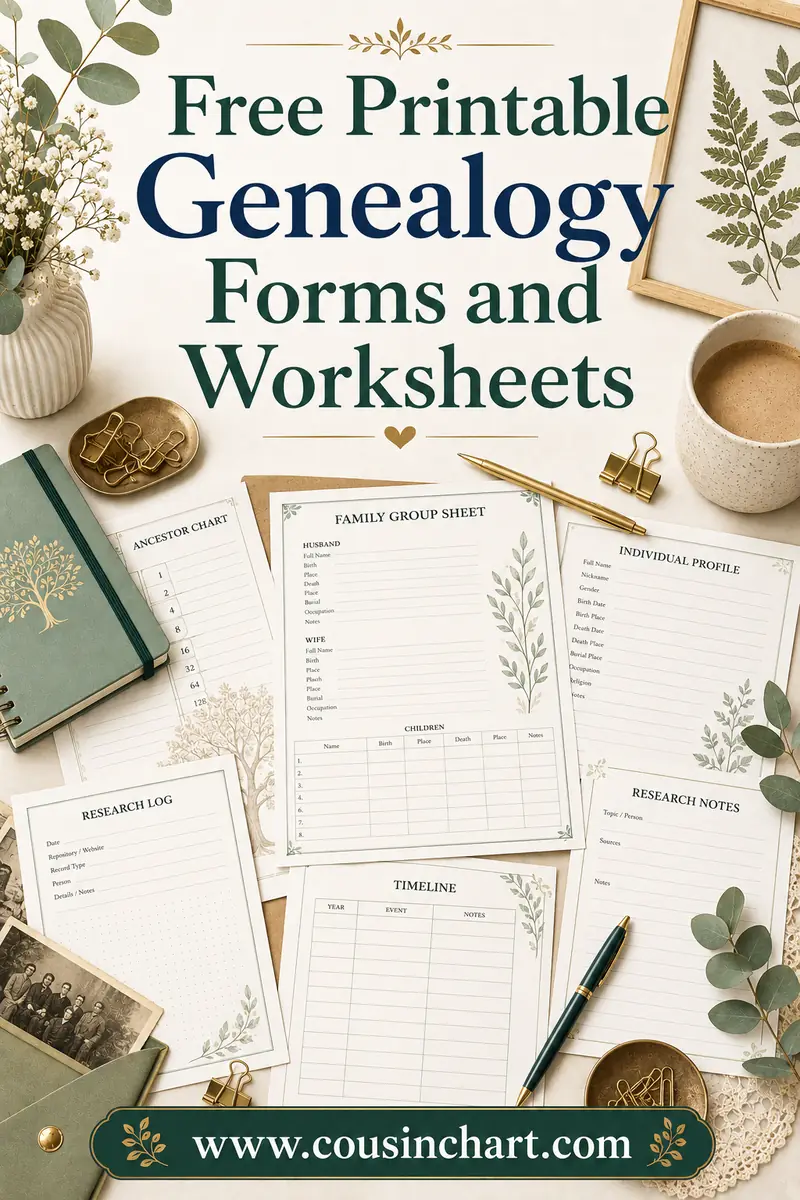
- The CousinChart route: the free printable pack's charts are PDFs designed for handwriting — the blank family tree templates cover the same 3–5 generation layouts people try to force out of Word, pre-drawn and print-perfect. The honest division of labor: use Word when you need typed, editable, emailable; use the printables when you need finished and on paper tonight.
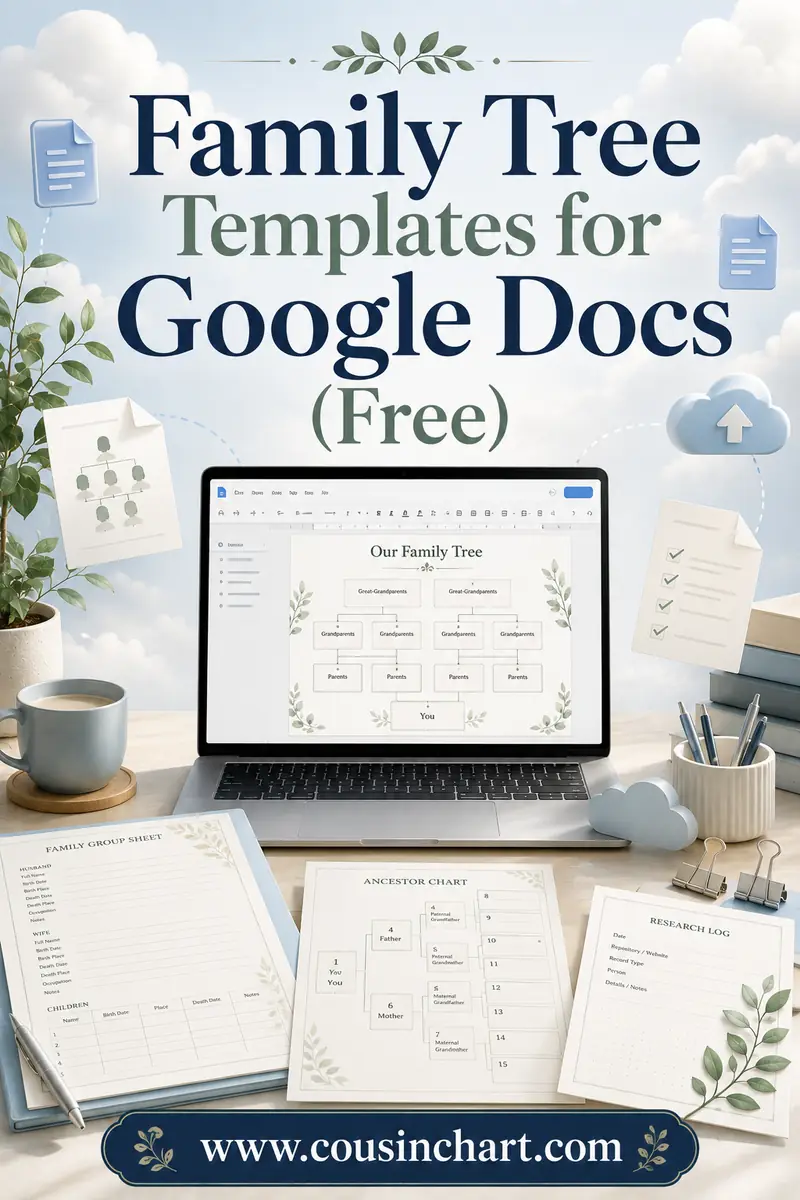
Prefer a spreadsheet's infinite canvas? The Excel version of this guide builds the grid method at scale — and for the collaboration case (relatives filling in their own branches), Google Docs wins outright.
Making it look like a keepsake, not a flowchart
Word trees default to looking like org charts because that's what the tools were built for. Five adjustments move one from "quarterly review" to "family heirloom":
- Kill the default blue. SmartArt's standard styling reads corporate instantly. Recolor to muted, papery tones — cream fills, brown or deep-green borders — via SmartArt Design → Colors, or Shape Fill on text boxes. Two colors maximum: one for boxes, one for lines.
- Change the font once, globally. Select everything and switch from the default to a serif (Georgia and Garamond both stay readable at small sizes). Names in small caps with years in italics beneath is the classic genealogy look, and it's two clicks in the Font dialog.
- Add photos inside boxes. Text box method only: Insert → Pictures into a box sized about 1×1.25", with the name beneath. Right-click each photo → Wrap Text → In Front of Text so it stays put. A three-generation photo tree on landscape Letter is the single most-requested version of this project, and Word genuinely does it well.
- A title and a date line. "The Reyes Family — four generations, compiled 2026" across the top in 20pt turns a diagram into a document. Future copies of this file will circulate for years; the date line is for whoever finds one in 2040.
- Background restraint. Skip Word's watermarks and page borders — they print muddy. If you want warmth, a very light cream page color (Design → Page Color) survives printing better than any ornament. Remember to enable printing background colors in Word's options, or export to PDF where it's kept automatically.
Ten minutes of this styling is also the honest limit: past it, you're fighting a word processor to do a design program's job, and the pre-designed charts in the free pack (or a proper poster tool) take over more gracefully.
Printing from Word
- Match the print dialog to your page size. A 17×11 design printed on Letter gets silently scaled 65% — every name shrinks with it. Export to PDF for the copy shop instead.
- Check connector snapping before printing: View → Zoom → 100%, because at Fit view, detached connectors hide.
- Export to PDF for anyone else's printer (File → Save As → PDF). Word files reflow across machines; PDFs don't.
FAQ
Does Word have a built-in family tree template?
A few — File → New, then search "family tree" — plus SmartArt hierarchy diagrams under Insert → SmartArt, which build a simple tree in minutes. Both are free; neither handles complex families (remarriage, step-lines) without manual work.
What's the best way to make a family tree in Word?
SmartArt for a quick three-generation descendant tree; text boxes with elbow connectors for anything real (they handle couples, half-siblings, and dashed step-lines); a merged-cell table for a clean, reliably printable pedigree grid. Set landscape orientation and narrow margins before starting, whichever you choose.
How many generations fit on a family tree in Word?
About four on landscape Letter before boxes get cramped; five or six if you set a custom 17×11 page and print at a copy shop. Beyond that, use a purpose-built chart PDF or poster format.
How do I show marriages and step-relationships in Word?
Couples: two boxes side by side joined by a short connector (or one shared box in SmartArt). Second marriages: a second spouse box with its own children's drop line. Step and adoptive links: the same connectors with dash formatting, noted in a small key.
Why do my connector lines detach when I move boxes?
They were drawn as plain lines, not glued connectors. Use Insert → Shapes → Elbow Connector and drag between the anchor dots that appear when hovering over a shape — glued connectors follow their boxes. Group the finished chart to prevent accidental drags.
Type the first box
Open Word, go landscape, and put your own name in a box tonight — SmartArt if the tree is simple, text boxes if it isn't, the table if it has to print flawlessly tomorrow. And before you connect anyone you're not sure about, check the link in two taps with the free CousinChart calculator — it's much easier than redrawing connectors after the reunion corrects you.