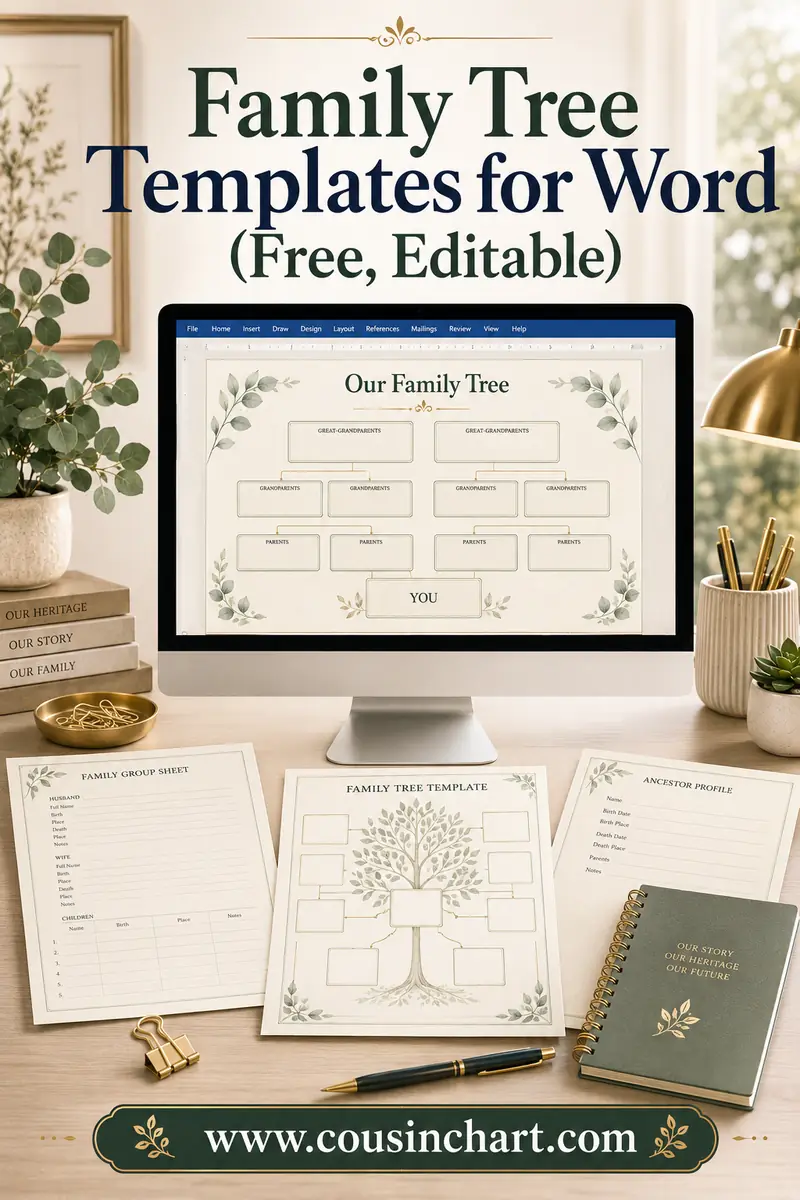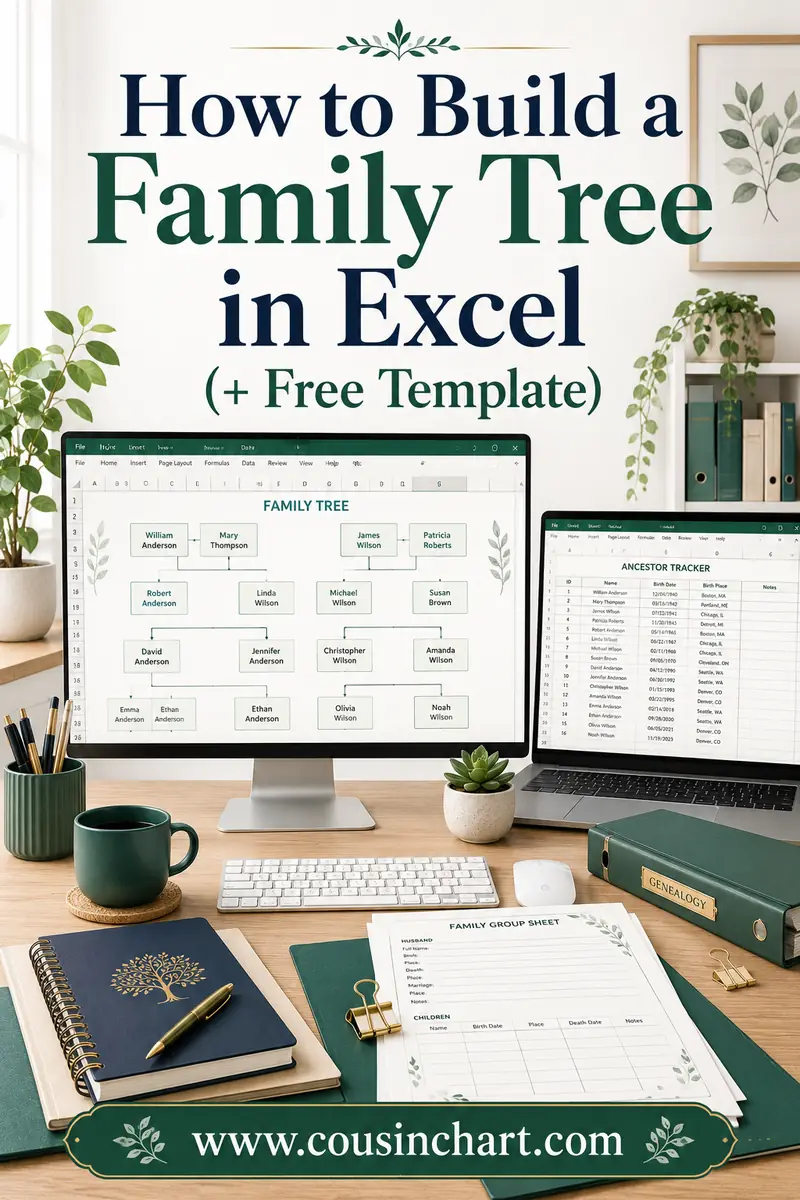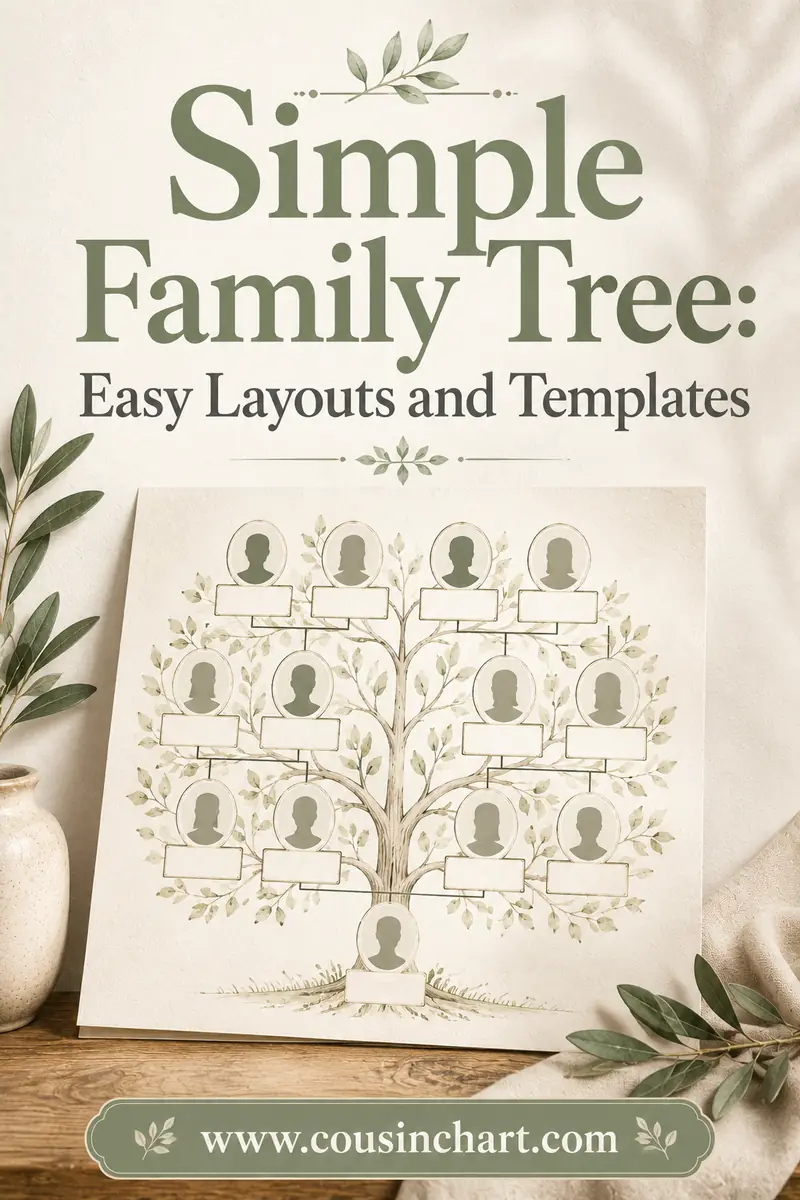
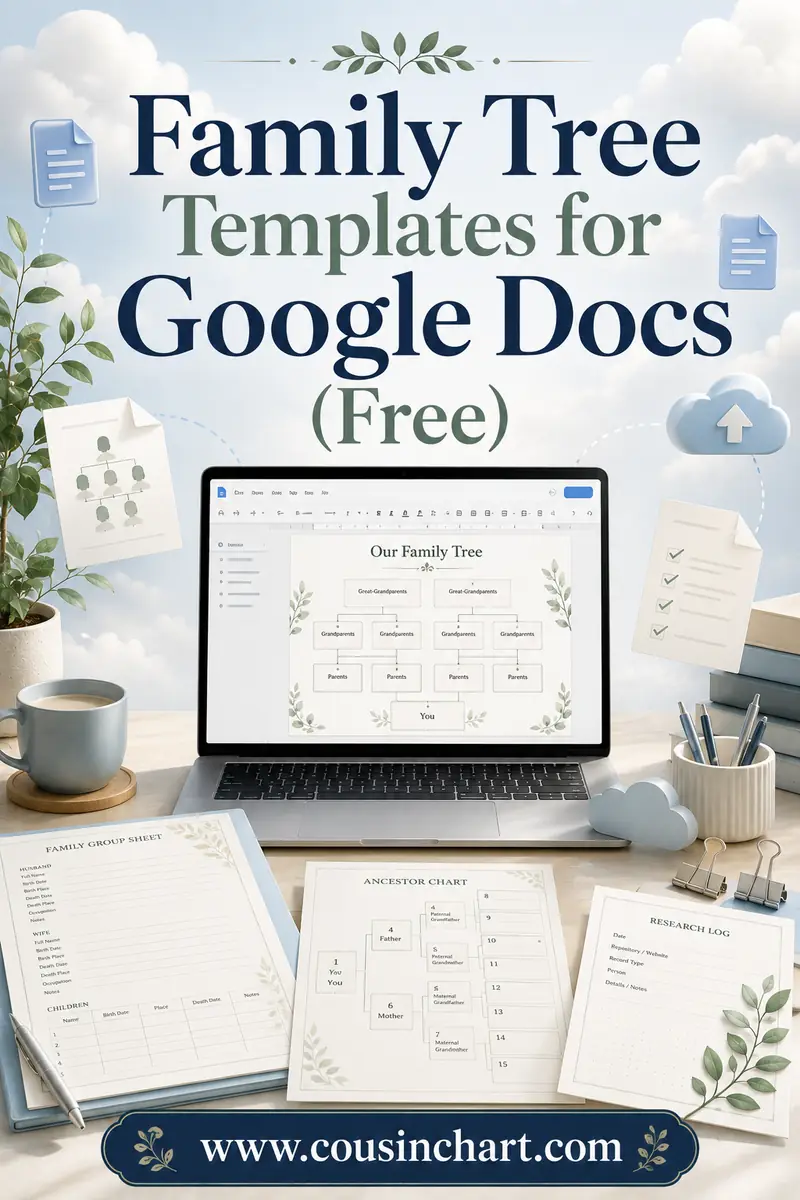
Family Tree Templates for Google Docs (Free)
Google Docs builds a family tree two ways — the Drawing tool (Insert → Drawing) for a proper boxes-and-lines chart, or a plain table for a fast grid — and it adds the one feature no desktop program has: a share link. Send the document to the family group chat and relatives fill in their own branches, correct spellings, and argue in the comments, all in the same file, free, from their phones.
This guide covers both build methods step by step, the sharing setup that makes a tree a family project instead of a solo chore, and the printing route from Docs to paper. When you'd rather write than click, the free CousinChart printable pack has ready-made chart PDFs — and either way, keep the free relationship calculator open for the moment a filled-in branch makes someone ask what "second cousin once removed" actually means.
Free printables for this page
Download a blank PDF (US Letter or A4) — free, no sign-up — or customize it in the maker above before printing.
 3-Generation Family TreeYou, parents and grandparents. Portrait, big boxes, 10 minutes to fill.
 4-Generation Pedigree Chart
 5-Generation Pedigree Chart
 Blank Fan Chart (5 Generations)
Relationship quick-check: tap a phrase to see who they are — handy when the shared doc starts filling up.
Tap a phrase above to see the answer.
Work out any family relationship →First: set the page up sideways
Family trees are wide. Before building anything: File → Page setup → Landscape, and drop the margins to 0.5". (If your doc is in the newer pageless mode, switch back to Pages for a tree — you want fixed edges so the chart prints the way it looks.)
One honest note about the template gallery: Docs' built-in gallery (File → New → From template gallery) has resumes and brochures but no real family tree template, which is why everyone ends up building one. Both builds below take under half an hour.
Method 1: the Drawing tool (proper chart)
Google Docs embeds a full diagram editor most people never open:
- Insert → Drawing → + New. A canvas opens over your doc.
- Make one box: the shape tool → rectangle, draw it, double-click to type the name. Style it once — fill color, border, font size — because this box is about to become everyone.
- Copy-paste for each person (Ctrl+C, Ctrl+V inside the canvas). Uniform boxes by cloning, not re-formatting.
- Arrange by generation bands: grandparents' row on top, parents below, kids below that. Drag boxes; the red alignment guides that appear are Google quietly doing your straightening.
- Connect with the line tool — pick elbow connector, and drag from the edge of one box to another. Connectors snap to boxes and stay attached when you move things, which is the feature that makes rearranging painless. Couples: short horizontal connector between them. Children: lines dropping from the couple's connector.
- Dashed lines for step and adoptive links: select the line → line dash menu in the toolbar. Same convention as every paper chart.
- Save and Close drops the drawing into the doc. To edit later, double-click it — the canvas reopens.
Capacity: a Drawing chart stays comfortable to about four generations of a normal-sized family on one landscape page. The canvas itself scrolls bigger, but boxes below about a centimeter tall stop being readable in the doc. Bigger families: split into one drawing per branch, stacked down the doc with headings — or move the master tree to a spreadsheet grid, which is exactly what the Excel guide builds (the same merged-cell method works verbatim in Google Sheets).
Method 2: the table (fast grid)
For a pedigree-style ancestor chart with zero drawing: Insert → Table, 4 columns wide, 8 rows deep. Then merge cells so each column holds the right number of slots — select cells, right-click, Merge cells: column 4 keeps all 8 rows (great-grandparents), column 3 merges into pairs (4 grandparents), column 2 into two blocks of 4 (parents), column 1 merges fully (you). Type names, bold the surnames, and use Format → Table → Cell vertical alignment → Middle so each ancestor floats centered between their two parents.
It's the same grid logic as a printed pedigree chart, it never breaks when someone else edits it, and it's the better method for phones — relatives can type into a table cell from anywhere, while the Drawing canvas is desktop-only editing. If you want this but prettier and pre-drawn, that's literally the simple family tree layouts in the printable pack.
The real reason to use Docs: the share link
Any tool makes boxes. Docs makes contributors. The setup that works:
- Share → anyone with the link → Editor (or keep it to specific emails if the family chat leaks).
- Drop the link in the group chat with one sentence of instructions: "Add your kids' names and birth years to your branch."
- Watch the corrections roll in. Relatives will not build a chart, but they will absolutely fix their own row — spellings, dates, the cousin nobody told you about. Ten contributors of two minutes each beats one archivist's whole weekend.
- Use comments for disputes. "Was Lola born in 1931 or 1933?" as a comment thread pinned to her box is the friendliest fact-checking mechanism ever built — and Version history (File → Version history) means no correction is ever truly lost, including the one where somebody's toddler deletes the grandparents.
- Suggesting mode (pencil menu, top right) for cautious families: edits arrive as proposals you approve one by one.
This collaborative pass is worth doing even if the final tree will live somewhere else entirely — the Doc becomes the family's self-updating source of truth, and you become its editor instead of its typist.
When Docs isn't the right Google tool
Docs is the collaboration home base, but Google gives you three siblings worth knowing before you commit:
- Google Drawings (docs.google.com/drawings) is the same canvas as Insert → Drawing, freed from the document: a standalone file with a custom canvas size, which matters the day your tree outgrows a Letter page. File → Page setup accepts poster dimensions, and the finished drawing downloads as PDF or PNG for large-format printing. If your Docs drawing is getting crowded, copy-paste the whole thing into a standalone Drawing and keep building — nothing is lost in the move.
- Google Slides is the sleeper choice for photo trees: each slide is a fixed canvas, image handling beats Docs, and a slide per family branch with a title slide up front makes a genuinely nice digital heirloom. Slides' template gallery and third-party decks also have more tree-shaped layouts than Docs ever gets.
- Google Sheets takes over when the tree becomes a roster — the merged-cell pedigree grid and the one-row-per-person family database both work exactly as described in the Excel guide, and Sheets shares and comments just like Docs.
Side by side, the choice looks like this:
| Google tool | Pros | Cons |
|---|---|---|
| Docs — Drawing tool | A proper boxes-and-lines chart living inside the shared doc | Drawing edits are desktop-only; crowded past about four generations |
| Docs — table grid | Phone-friendly — relatives can type into cells from anywhere | Pedigree-style only; plain looks |
| Google Slides | Fixed canvas per branch; the best photo handling; more tree-shaped templates | Less natural for live collaborative fact-gathering |
| Google Sheets | The merged-cell grid and family database scale to any size | Spreadsheet looks; charm takes effort |
The rule of thumb: Docs to gather the family's knowledge, Drawings or Slides to make it pretty, Sheets when it gets big. All four share the same link-based collaboration, so the cousins never need to know you switched.
Getting it onto paper
- File → Download → PDF is the reliable route — the PDF freezes the layout, so what you print matches what you built. Print the PDF at 100% scale, landscape.
- Printing straight from Docs works but respects the browser's print dialog; double-check landscape and "actual size" there too.
- For bigger than Letter: download the PDF, take it to a copy shop, and print it at 11×17" — the Drawing method's charts enlarge cleanly.
- If the tree's final destination is a frame or a reunion wall, consider the handwriting route for the fair copy: print a blank chart from the free CousinChart printable pack and copy the Doc's verified names into it. Typed Docs gather facts best; hand-lettered charts display them best. Use each for its half.
(Working in Microsoft's world instead? The Word guide covers SmartArt and text-box builds; the methods mirror these two almost feature for feature.)
FAQ
Does Google Docs have a family tree template?
Not in its template gallery — but you can build one in under 30 minutes with Insert → Drawing (boxes and connectors) or a merged-cell table, both free. Third-party "Docs templates" found online are usually just these two methods pre-built, sometimes with watermarks.
How do I make a family tree in Google Docs?
Set the page to landscape, then either Insert → Drawing → + New and build boxes joined by elbow connectors (they stay attached when boxes move), or insert a 4×8 table and merge cells into a 1-2-4-8 pedigree grid. Share the link so relatives can fill their own branches.
Can multiple family members edit the tree at once?
Yes — that's Docs' whole advantage. Share the link with Editor access and relatives can add names and corrections simultaneously from any device; comments handle disputed dates, and Version history undoes any accident.
Is Google Docs or Google Sheets better for a family tree?
Docs for a visual chart up to about four generations and for collaborative filling. Sheets for big trees — its grid handles the merged-cell pedigree method at any size, one worksheet tab per family branch, exactly like Excel.
How do I print a family tree from Google Docs?
Download as PDF (File → Download → PDF) and print that at 100% scale, landscape — the PDF locks the layout. For wall-size copies, take the same PDF to a copy shop at 11×17 inches.
Start the doc, share the link
Make the doc tonight: landscape page, ten boxes, the three generations you know. Then send the link to the family chat and let the tree grow itself while you sleep — it's the only genealogy method with overnight progress. Print the blank fair-copy chart from the free CousinChart pack when the facts settle, and let the free relationship calculator referee whatever the comment threads start about who's a second cousin versus once removed.